If you want to install downloaded PC games on Windows 11 without turning your machine into a science experiment, the process is actually pretty simple. The trick is not the install itself. The trick is knowing what you downloaded, whether the source is legitimate, and which installation method fits the file you have in front of you.
- Before you install anything on Windows 11
- Where to download PC games legally and safely
- How to tell what kind of game file you downloaded
- How to install downloaded PC games step by step
- How launcher-based games work
- How to install offline PC games safely
- Red flags that usually mean trouble
- Common installation problems on Windows 11
- A smart routine for every new game download
- Final thoughts
Before you install anything on Windows 11
Most people search for how to install downloaded PC games because they already have the files and just want the fastest route from download to gameplay. Fair enough. But before you double-click anything, pause for ten seconds and do one very boring but very useful thing: verify the source.
If the game comes from an official store, official developer page, or a trusted launcher, installation is usually straightforward. If the download came from a random page stuffed with pop-ups, fake buttons, “boosted installer” nonsense, or instructions telling you to disable Windows Security, that is your cue to back away slowly.
Windows 11 is actually pretty good at warning you about suspicious files. Don’t treat those warnings like annoying ads. Treat them like a friend who has seen this movie before and already knows the ending is bad.
Where to download PC games legally and safely

If your goal is free PC games, there are plenty of legal routes. You do not need sketchy installers, cracked launchers, or mystery archives from sites that look like they were designed during a power outage.
The safest options are the usual suspects: official stores, official publishers, and developer-approved platforms. These are also the easiest places to manage updates, DLC, cloud saves, and account security.
For readers who enjoy offline PC games, it also helps to browse genre pages and installation-related content in one place. On elamigosedition.com, relevant internal pages include Featured Games, Indie Games, Adventure Games, RPG Games, and the blog section, where an installation guide or category page can help you figure out what kind of game package you are dealing with.
The key point is simple: legal free games exist. Free-to-play games exist. Demos exist. DRM-free promotions exist. Weekly giveaways exist. So if a site claims every paid AAA release is “free and totally normal,” that is not a shortcut. That is a trap wearing a hoodie.
How to tell what kind of game file you downloaded
One reason people get stuck is that “downloaded game” can mean several completely different things. Before you install anything, look at the file type.
1. EXE or MSI installer
This is the classic Windows installer. You double-click it, approve the prompt, choose a folder, and let it install. This is common for indie games, older PC titles, tools, launchers, and many DRM-free releases.
2. ZIP, RAR, or 7Z archive
This means the game files are compressed. You need to extract them first. If the archive contains a setup file, run that. If it contains a game folder with an executable, it may already be a portable build. Always scan extracted files if the source is not an official store.
3. ISO image
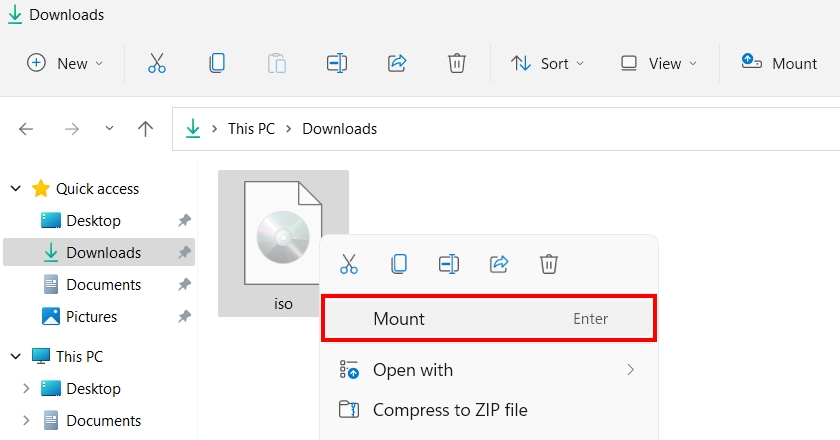
An ISO is a disc image. On Windows 11, you can usually right-click the file and choose Mount. You do not need extra virtual drive software for most cases. Once mounted, open the new virtual drive and run the installer.
4. Launcher-based library item
Steam, Epic, GOG Galaxy, EA app, Ubisoft Connect, Battle.net, Xbox app, and similar services usually handle the install for you. In that case, the “download” is tied to your account, and installation happens inside the launcher.
How to install downloaded PC games step by step
Here is the cleanest general workflow if you want to install downloaded PC games on Windows 11 without chaos.
- Check the source. Prefer official stores, official developer pages, or well-documented platform pages.
- Scan the file. Use Windows Security or your antivirus before opening unknown installers.
- Open the Downloads folder. Confirm the file extension so you know whether it is an installer, archive, or ISO.
- Extract or mount if needed. ZIP and RAR files need extraction. ISO files usually need mounting.
- Run the installer as a normal user first. Only use administrator permissions when the installer actually needs them.
- Choose the install path carefully. A custom folder like C:\Games is often easier to manage than deeply nested default locations.
- Install required components. Some games need DirectX, Visual C++ Redistributables, .NET, or launcher sign-in.
- Finish installation and launch once. Let the game create config files and save folders.
- Adjust graphics and controller settings. Do this before assuming the game is broken.
If the game asks you to install additional runtimes, that is normal. If it asks you to disable Defender, turn off SmartScreen, install a strange browser extension, or enter a password to unlock the “real installer,” that is not normal.
A good install process feels boring. Boring is good. Boring means predictable, signed, documented, and less likely to mine your passwords while you are trying to launch a farming sim.
How launcher-based games work
A lot of legal free games today are not installed from a standalone setup file. They are installed through a launcher. This is common with free-to-play titles, weekly giveaways, and games tied to account ownership.
In practice, the process is easy: install the launcher, sign in, claim the game, choose the install location, and let the client handle updates. This is usually the safest route because the files come directly from the platform and the launcher also verifies them later if something goes wrong.
Launcher installs are especially useful if you switch between online and offline play. Many clients let you prepare games while connected, then run supported titles later in offline mode. That matters if you like single-player or low-distraction gaming sessions.
What about account safety?
Use a strong unique password and enable two-factor authentication on every launcher account you care about. Steam Guard, Epic account security, Microsoft account protection, and similar features are there for a reason. Losing access to your library is a much more annoying problem than losing a save file.
How to install offline PC games safely

Offline games are a great fit for players who want quick access, less clutter, and no surprise launcher drama every time they sit down for twenty minutes. But “offline” does not automatically mean “safe,” and “free” does not automatically mean “legal.” You still need to separate trustworthy sources from risky ones.
The best legal offline options are usually DRM-free games, demos, freeware projects, indie releases, classic titles offered by rights holders, and official giveaway claims. Once downloaded, these games often install from a normal EXE, archive, or ISO and can run without constant online authentication.
If you are exploring offline-focused categories, it makes sense to stick with clearly organized pages such as Action Games, Strategy Games, Simulation Games, or Logic Games. A structured category page is not a guarantee of legitimacy by itself, but it is usually a better starting point than a random download page with six fake green buttons and a countdown timer trying to make you panic-click.
If a game page includes useful notes about file type, install steps, or whether the game needs a launcher, that is a good sign. If it hides basic information and pushes you toward an “accelerated installer,” skip it.
Red flags that usually mean trouble
If you remember nothing else from this article, remember this section. Most malware problems do not start with advanced hacking. They start with someone clicking a file that had multiple warning signs.
| Red flag | Why it is risky |
|---|---|
| Installer asks you to disable antivirus | Legitimate game installers do not normally require this |
| Password-protected archive with no explanation | Can hide files from automatic scanning and basic inspection |
| “Download manager” instead of direct game file | Often bundles adware, fake offers, or unwanted software |
| Fake update pages or pop-up redirects | Common phishing and malware delivery method |
| Instructions to install browser extensions first | Usually unrelated to the game and often malicious |
| No publisher info, no file details, no screenshots of install | Low transparency usually means higher risk |
| Claims that every paid game is free forever | Often points to pirated or tampered files |
Another good habit is to look at the filename itself. Official installers usually look normal. Malicious files often try too hard, with names like Game_Setup_Final_100percent_Working_NoVirus.exe. That sort of confidence is rarely a good sign.
Common installation problems on Windows 11
Sometimes the source is fine, but the install still fails. Here are the usual suspects.
The installer will not open
This can happen if SmartScreen blocks an unrecognized app, the download is incomplete, or the file is corrupted. Re-download from the original source first. If the file came from a trusted developer or store, verify the download before trying again.
The game installs but will not launch
This is often caused by missing runtimes, outdated GPU drivers, unsupported hardware, or a launcher dependency. Check whether the game needs DirectX, Visual C++ packages, or sign-in through a platform client.
The game opens and crashes immediately
Try running it once as administrator, updating graphics drivers, disabling overlays, and checking the game’s minimum requirements. If it is an older title, compatibility mode can help, though it is not magic and should not be the first thing you try for every problem.
The install folder is a mess
Use one main library path for manually installed games. Keeping standalone or DRM-free titles in a folder like C:\Games makes backup, uninstall, and troubleshooting much easier than hunting through random subfolders later.
A smart routine for every new game download
If you download games regularly, build a routine. It saves time, and it lowers your chances of making one bad click after a long day.
- Use official stores first
- Read the game page before downloading
- Check whether the game needs a launcher or runs offline
- Scan the file before opening it
- Extract or mount only after checking the file type
- Install to a clean folder you control
- Keep launcher accounts protected with 2FA
- Do not ignore obvious Windows 11 security warnings
- Skip any site that relies on fake buttons or forced download tools
This routine matters even more if you like collecting free downloadable PC games. Free games can be great. Free games from the wrong place can also become free malware, free browser hijackers, and free regret.
Final thoughts
The best way to install downloaded PC games on Windows 11 is not some secret gamer trick. It is a simple system: choose a legal source, identify the file type, install it the right way, and treat suspicious warnings as useful information instead of background noise.
If you are mainly looking for safe free games for PC, stick to official launchers, DRM-free platforms, demos, giveaway programs, and clearly documented game pages. If you browse genre collections or offline-focused content on sites like ElAmigos Games, use the same rule every time: clarity beats hype. The more transparent the page is about the game, the files, and the installation process, the better.
That approach is less flashy than chasing random “instant free download” promises, but it works. More importantly, it keeps your Windows 11 PC ready for what you actually wanted in the first place: installing the game, launching it, and playing without surprises.