If you download PC games, Windows tools, or old software archives, sooner or later you will run into an ISO file. The good news is that in Windows 11, you usually do not need extra software to open it. You can mount ISO Windows 11 in a few seconds, browse the files like a normal disc, and start setup without burning anything to DVD. For gamers, that is especially handy when dealing with offline installers, backup images, bonus content, or classic disc-based releases.
Table of Contents
- What an ISO file actually is
- How to mount ISO Windows 11 step by step
- How to open and install from a mounted ISO
- How to unmount an ISO
- What to do if the Mount option is missing
- How to stay safe with game ISO files
- Mounting vs extracting an ISO
- When mounting an ISO makes the most sense
- Extra help for gamers using offline installers
- FAQ
- Final thoughts
What an ISO file actually is
An ISO file is a disc image. Think of it as a complete digital copy of a CD, DVD, or Blu-ray stored in a single file. Instead of inserting a physical disc, Windows 11 can create a virtual drive that behaves like the real thing.
That is why ISO files are still common in PC gaming. Some game installers, repacks, bonus discs, and older releases are distributed this way because the file structure stays intact. No missing folders, no broken setup sequence, and no need to split hundreds of loose files.
For regular users, the main benefit is simple: when you mount an ISO in Windows 11, you can open it in File Explorer and run the installer as if a disc were inserted into your computer.
How to mount ISO Windows 11 step by step
The fastest method is built right into the operating system. You do not need DAEMON Tools, PowerISO, or any other virtual drive app for most standard ISO files.
Method 1: Right-click the ISO file
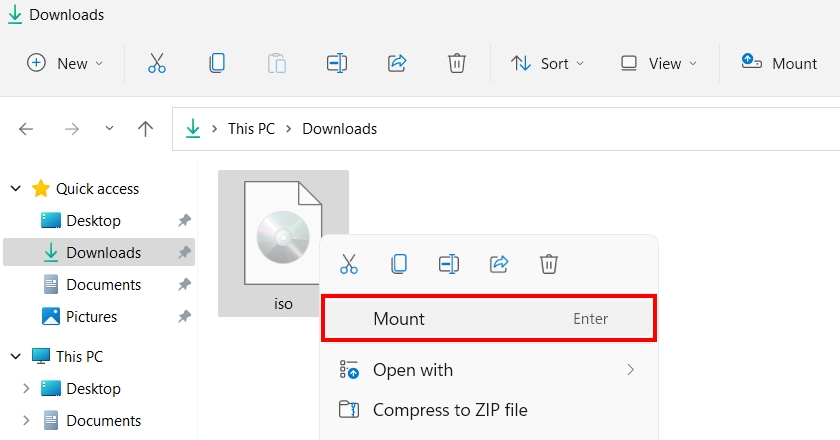
Open File Explorer and go to the folder where your ISO file is stored. Right-click the file and choose Mount. Windows 11 will instantly create a virtual DVD drive and assign it a drive letter.
After that, open This PC and you should see a new drive. Double-click it to view the contents of the ISO.
Method 2: Double-click the ISO file
On many systems, simply double-clicking the ISO also works. If Windows is correctly associated with disc images, the file will mount automatically and open in File Explorer.
Method 3: Use the top menu in File Explorer
Select the ISO file once, then use the File Explorer toolbar if the option appears on your system. This can be useful when right-click menus are cluttered or customized by third-party software.
What you should expect after mounting
Once the image is mounted, it behaves like a disc. You can open folders, inspect setup files, read old README notes from classic PC releases, and launch setup.exe or another installer file if one is included.
How to open and install from a mounted ISO
Mounting is only the first part. The next step is knowing what to do with the virtual drive once it appears.
Open the mounted drive and look for the main installer. In most cases, this will be setup.exe, install.exe, or an autorun file. Double-click it and follow the on-screen instructions just like you would with a physical game disc.
If you are working with offline PC game installers, this is one of the cleanest ways to preserve the original folder structure. It is also handy if you are following a broader install guide such as How to Install Downloaded PC Games on Windows 11, where mounting the image is often one of the first steps before setup begins.
Some ISO files are not installers at all. They may contain patches, bonus soundtracks, manuals, drivers, or recovery tools. In that case, mounting still helps because you can browse everything without unpacking the archive manually.
How to unmount an ISO

When you are done, removing the virtual disc takes just a moment. Open This PC, right-click the mounted virtual drive, and choose Eject.
This does not delete the ISO file. It only removes the virtual drive from File Explorer. The original ISO stays in its folder, ready to be mounted again later.
If you install a lot of offline games or test several installers in one session, getting into the habit of ejecting unused images keeps your system tidy and avoids confusion over drive letters.
What to do if the Mount option is missing
Sometimes Windows 11 does not show the Mount option. Annoying, yes. Usually fixable, also yes.
Check the default app association
If another program has taken over ISO files, Windows may stop offering its native mount feature. Right-click the ISO, choose Open with, and select File Explorer or Windows Explorer if available. After that, try again.
Look for third-party disc tools
Apps like old virtual drive managers can override the built-in behavior. If you previously installed software for mounting images, it may have hijacked ISO associations. Disabling or uninstalling that software often restores the normal Windows 11 option.
Use Show more options
On some systems, the classic menu still hides useful commands. Right-click the file, choose Show more options, and check whether Mount appears there.
Restart File Explorer or the PC
It sounds basic because it is basic, but it works more often than people like to admit. If the file association just changed or Explorer is behaving strangely, a restart can bring the option back.
How to stay safe with game ISO files
This part matters. Mounting an ISO is easy, but trusting the wrong ISO is where problems start.
If you download PC game installers, always think about source quality before you think about convenience. A mounted ISO can expose harmless install files, but it can also contain fake launchers, modified executables, or malware disguised as a setup wizard. Windows can mount the file just fine. That does not mean the content inside is safe.
Signs an ISO file deserves caution
- The source looks rushed, spammy, or packed with fake download buttons.
- The filename is suspiciously vague, especially when it imitates a major game or launcher.
- The archive asks you to disable antivirus before even opening the installer.
- The mounted image contains odd executable names instead of a normal game setup structure.
- The installer pushes browser extensions, crypto miners, or “required” helper apps.
Good habits before you run anything
- Scan the ISO file and the mounted contents with your security software.
- Check whether the file structure looks normal before launching setup.
- Prefer known, consistent sources and avoid random mirrors that feel stitched together.
- Read install notes carefully, especially for offline games and older PC releases.
- Keep your Windows account, browser, and game launchers protected with strong passwords and two-factor authentication where possible.
If you browse game-related pages on ElAmigos Games, this kind of caution is still useful. Not because ISO itself is dangerous, but because users often rush through installation steps. A smarter workflow is simple: verify the file, mount it, inspect the contents, then install.
Mounting vs extracting an ISO
A lot of people ask whether they should mount an ISO or just extract it with 7-Zip or WinRAR. The honest answer is: it depends on the file and what you need.
| Method | Best for | Main advantage | Possible downside |
|---|---|---|---|
| Mounting | Installers, game discs, software images | Keeps original disc structure intact | Still requires caution with unknown files |
| Extracting | Manual file access, document viewing, asset checks | Lets you copy or inspect files directly | Some installers do not behave correctly when extracted |
For most game installation scenarios, mounting is the better first move. It mirrors how the software was meant to be opened and reduces the chance of breaking disc-based installation logic. Extracting is more useful when you only want to inspect files or grab specific content from the image.
When mounting an ISO makes the most sense
Not every file needs it, but there are plenty of situations where mounting is the cleanest solution.
Offline PC game installation
If a game release comes as an ISO, mounting it is usually the intended workflow. You open the virtual drive, run the installer, and continue from there. This is especially common with older titles, preserved releases, or disc-style packages that keep everything together.
Checking game files before installation
Maybe you want to confirm the installer exists, inspect languages, or see whether manuals, soundtrack folders, or extras are included. Mounting lets you do that without unpacking the entire image.
Running Windows or software setup
ISO files are not only for games. Windows installers, recovery tools, Linux distributions, and older application suites often use the same format. Once you know how to mount ISO Windows 11, you can reuse the same skill across dozens of situations.
Working with disc-based collections
Collectors and retro PC fans often keep backups of physical media in ISO format. Mounting makes those archives practical again, without needing an optical drive in 2026, which is honestly becoming as rare as a flawless day-one PC launch.
Extra help for gamers using offline installers
If your goal is not just opening the image but actually getting a game working, the best results usually come from combining safe file handling with a clear install routine. Mount the image, inspect the contents, run the installer, and only then move on to patches, optional language packs, or launcher settings.
You can also explore game categories on elamigosedition.com depending on what you play most often, whether that is Action Games, RPG Games, Racing Games, or the broader Featured Games section. That makes it easier to move from a general installation question to a game-specific page or guide when needed.
And if you are new to the topic, do not overcomplicate it. Windows 11 already gives you the main tool you need. Most of the time, the process is simply: download, verify, mount, open, install, eject.
FAQ
Is mounting an ISO in Windows 11 safe?
Mounting itself is safe because it is a built-in Windows feature. The real safety question is whether the contents of the ISO are trustworthy. Always verify the source before running anything inside the mounted image.
Do I need DAEMON Tools to mount ISO files in Windows 11?

No. In most cases, Windows 11 can mount ISO files natively. Third-party tools are usually unnecessary unless you are dealing with unusual image formats or advanced virtual drive features.
Why can I open the ISO but the game does not install?
The installer may require administrator rights, a missing dependency, additional files, or a more specific install order. It can also mean the image is incomplete or damaged. Start by checking the mounted contents carefully and compare them with any release notes or setup instructions.
Can I delete the ISO after installing the game?
Yes, if you no longer need it. But if the game requires disc verification, repair files, or later reinstalling, keeping the ISO as a backup can save time.
What is the difference between mounting and burning an ISO?
Mounting creates a virtual disc drive inside Windows. Burning writes the ISO onto a physical DVD or other media. For most modern users, mounting is faster, easier, and far more practical.
Final thoughts
Learning how to mount ISO Windows 11 is one of those small PC skills that pays off over and over again. It takes seconds, requires no special software in most cases, and makes offline installers, game archives, and setup images much easier to manage.
For PC gamers, it is especially useful when handling disc-style game releases, older installers, and offline packages. Just remember the golden rule: mounting an ISO is easy, but trusting random files should never be automatic. Use reliable sources, inspect what you open, and treat game installers with the same caution you would give any executable download.
Do that, and the whole process becomes much smoother. Less guesswork, fewer broken installs, and a much better chance that your game night starts with actual gameplay instead of troubleshooting.